Sharing Browser Context with AI Agents in VS Code


Visual Studio Code is turning the integrated browser into an active part of the AI development workflow. With recent integrated browser updates, developers can share website context directly with AI agents, letting them inspect pages, understand UI state, and assist with browser-dependent tasks.
This closes the gap between code and runtime behavior: Instead of copying errors, DOM snippets, or page descriptions into chat, developers can give agents the page context they need for debugging and iteration.
The Problem
For a long time, transferring meaningful browser context to an AI model was surprisingly difficult. Developers could describe what they saw, copy snippets from the DOM, paste console errors, or share screenshots, but none of these approaches gave the model a complete view of the actual page state. The browser remained a separate environment, while the AI assistant had to infer what was happening from fragmented clues.
This was especially limiting because the appearance and behavior of a DOM element are rarely determined by that element alone. Styles, scripts, layout constraints, inherited properties, feature flags, application state, and runtime data all influence how a component behaves once rendered. Looking only at the local markup or source code often misses the global context that actually shapes the user experience.
Another challenge was the weak connection between the code being edited and the website being rendered. A developer might be working on a component, stylesheet, or route, but the relationship between that code and the visible result in the browser was not always obvious to the AI agent. This made debugging slower, because the model could reason about the code or the page description, but not reliably connect both sides of the development loop.
As a result, AI assistance worked best for public websites that were easy to access from outside the development environment. Local applications, authenticated pages, staging environments, and stateful user flows were much harder to inspect. The most relevant browser context was often locked inside the developer’s own session, just out of reach of the model.
Recent VS Code updates change this workflow completely. By bringing the rendered page closer to the editor and making its live context available to AI agents, Visual Studio Code reduces the gap between what developers see, what the application does at runtime, and what the model can reason about. Instead of reconstructing browser state manually, developers can let the agent work with the actual page context and connect it back to the code more naturally.
The Solution
Here is how to share your browser with your Agent in VS Code.
- Start the integrated browser via View -> Browser
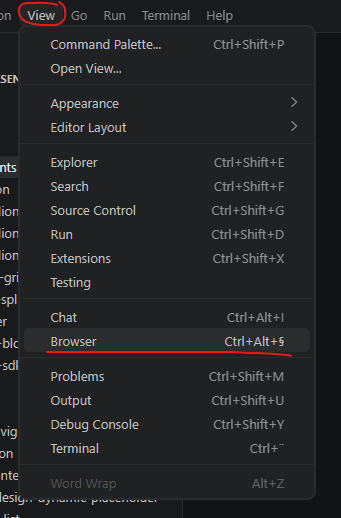
- Navigate to the target page
 This is where you could also log into non-public systems.
 - Add the browser tab as context to the Agent using the + icon
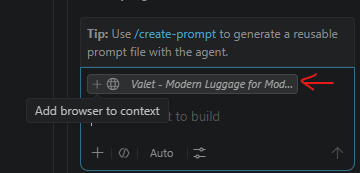 Note the warning! The agent will be able to read practically everything in this browser session.

- Your browser tab is now shared with the agent

- You can also add specific elements to the Context. To do that, right-click the element and choose Add element to chat
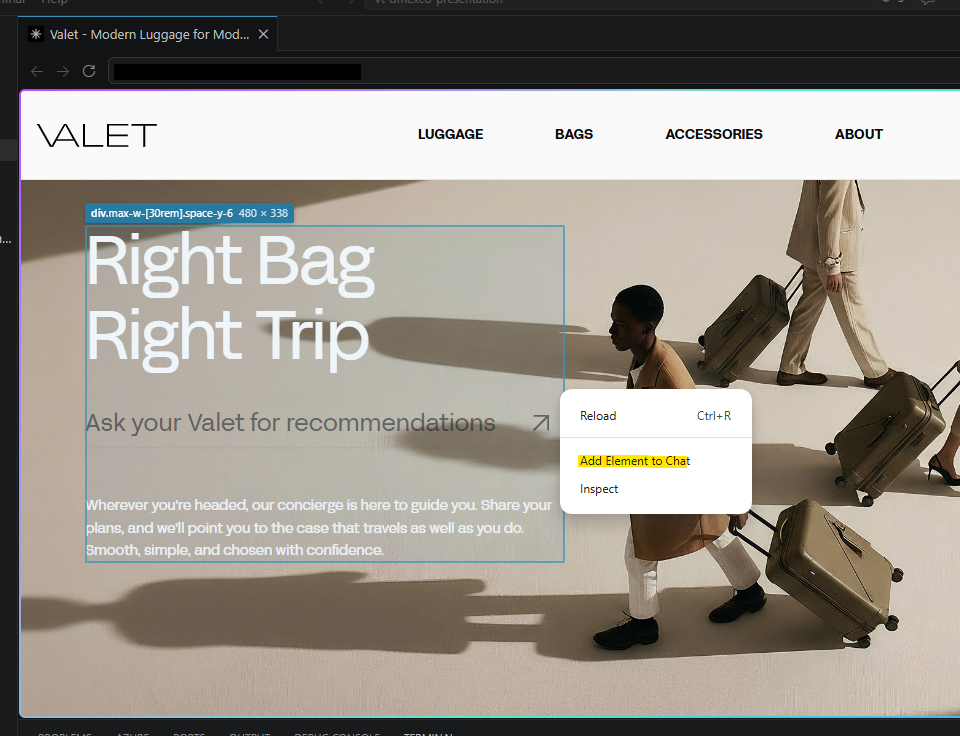 Note the warning! Adding content from untrusted sources might be a security risk.

- The element appears as context in the chat window.
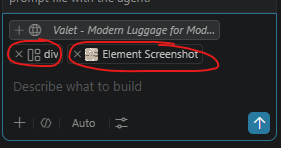
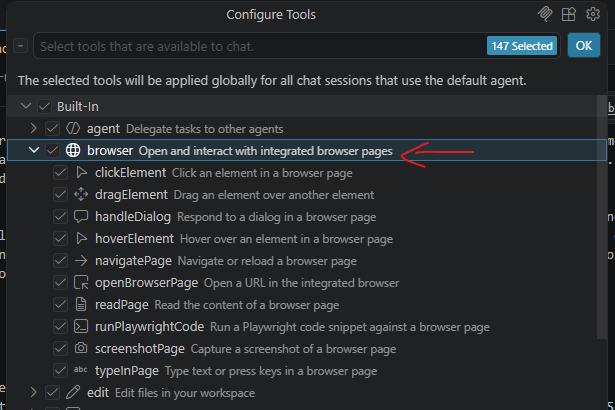
Congratulations! You now have a browser that can be read and analyzed by the agent. Note that the agent can actually also control this browser and even automate steps using Playwright!
A word of warning
This new level of browser integration is powerful, but it also creates new attack vectors, so developers need to keep security in mind. Once you are logged in, the browser can effectively impersonate you. It carries your authenticated session, your permissions, and your access to internal tools, customer environments, or private application data.
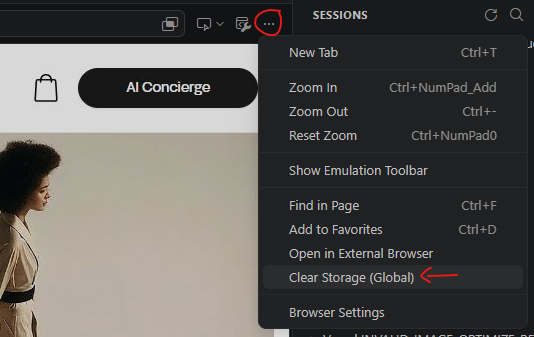
That context can also persist beyond a single tab or task. Browser sessions are shared between tabs and restored when VS Code restarts, which means an agent may be working with a browser state that has accumulated access, cookies, and history across multiple interactions. What looks like a temporary development session can therefore have a much longer-lived security impact. It is a good idea to regularly clear the browser storage.
There is also a new prompt-injection surface to consider. Attackers could place hidden or misleading instructions inside DOM elements, comments, labels, metadata, or other page content that becomes visible to the agent when browser context is shared. From the model’s perspective, malicious page content may look like instructions unless the agent is designed to treat it as untrusted data.
For that reason, sharing browser context should be a deliberate action, especially on authenticated or sensitive sites. Developers should think carefully about which tabs are shared, what account is currently logged in, and whether the page content can be trusted before allowing an agent to inspect or interact with it.
When a warning pops up, you better think twice!
Happy browser sharing!
Acknowledgements
Photo by Mohammad Rahmani on Unsplash